ThrottleStop
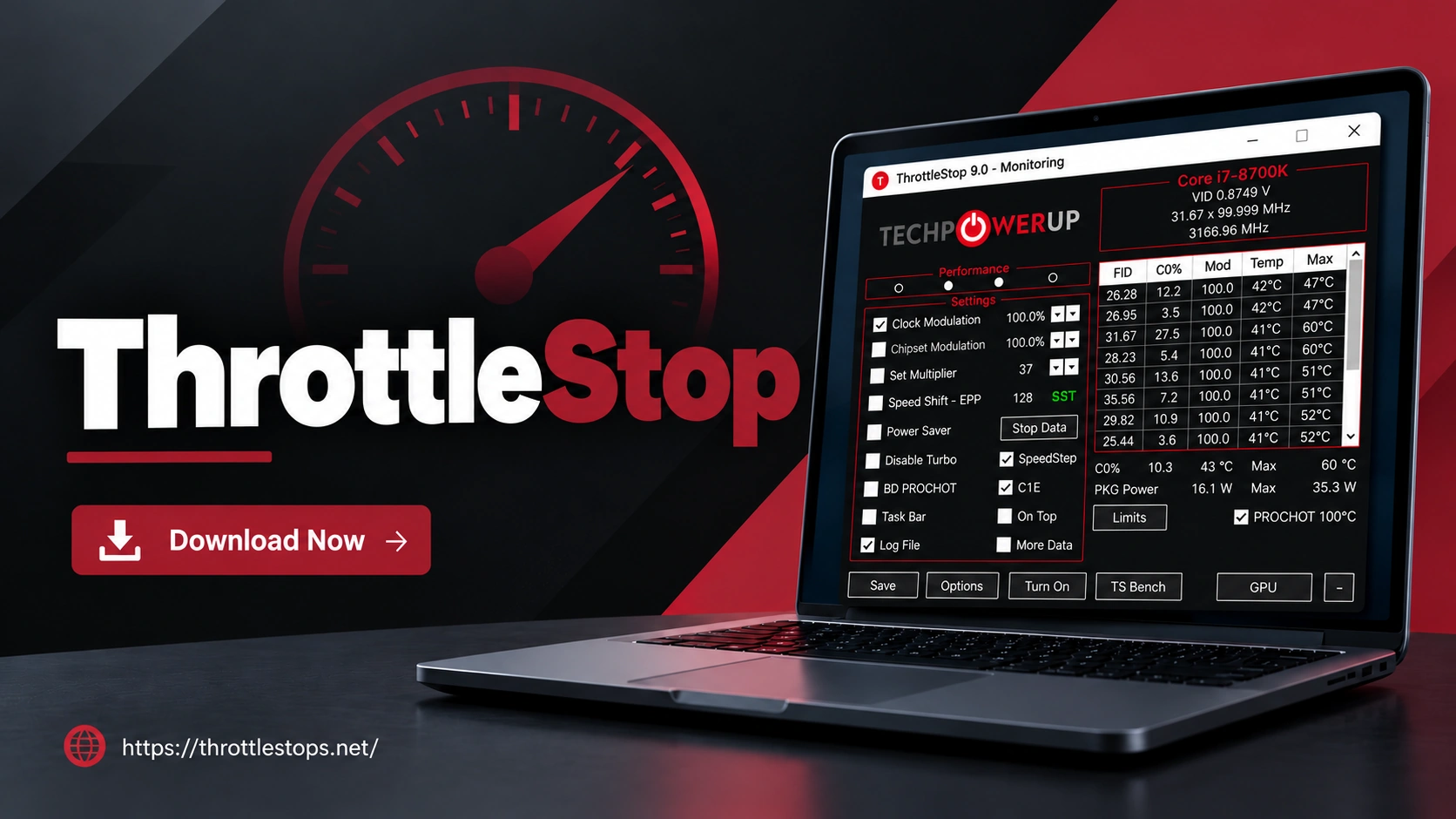
Underperforming Windows laptops/desktops due to thermal throttling? ThrottleStop fixes CPU slowdowns with undervolting and turbo/power limit tuning for cooler, sustained speeds. Download Now.
What is ThrottleStop?
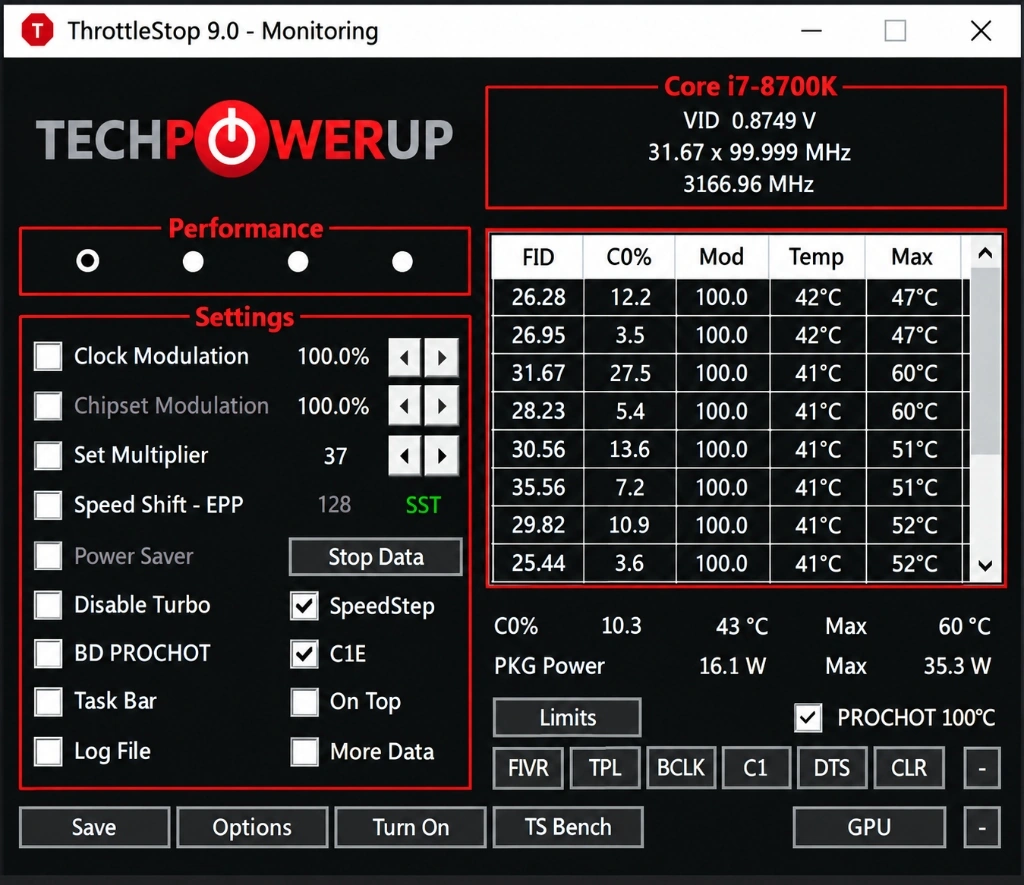
ThrottleStop is a lightweight Windows utility that helps users deal with CPU throttling on laptops and desktops. Throttling is when the processor slows down to control heat or power draw. Common signs include lag, dropped performance in games, or sluggish workloads under heavy use. Unlike basic system settings, ThrottleStop grants access to undervolting, power limit tuning (PL1/PL2), turbo multipliers, Speed Shift control, and clock modulation adjustments, all in one dashboard with live monitoring per CPU thread. Get direct control over CPU behavior to maintain stable performance without cutting speed too early.
A key method used in ThrottleStop is undervolting, which means keeping the CPU at its standard frequency while reducing voltage to cut heat and power draw. This often results in cooler, sustained performance without traditional overclocking. The latest builds refine “set-and-forget” profiling, making it popular among gamers, creators, and anyone battling overheating and unwanted frequency drops.
Note! ThrottleStop can reduce throttling, but tuning should be done responsibly. Monitoring power draw at the wall through external meters (or tools like Kill-A-Watt meter) and staying within adapter limits is important, as unsafe configurations may damage components and void warranties.
Know More About ThrottleStop
ThrottleStop was launched in 2010 and continues to develop, making CPU undervolting and tuning easier for everyday users. The latest ThrottleStop 9.7.3 Beta (April 2, 2025) has improved support for newer Intel CPUs with per-core controls and clearer power data reporting.
ThrottleStop was made by Kevin Glynn (known as UncleWebb). He built it as a small CPU tuning tool so users can reduce heat, adjust voltage, and manage power behavior on Intel-based laptops and desktops without complicated BIOS tweaks.
It offers three core areas to manage CPU behavior. The main screen handles Speed Shift EPP (0-255), profiles, logs, and performance toggles. FIVR lets users reduce voltage for lower heat and stable performance. TPL controls power limits (PL1/PL2/Tau) to reduce throttling during heavy tasks like games or benchmarks.
It helps maintain higher CPU speed during heavy apps by reducing thermal and power-based slowdowns. Users often see cooler temps, fewer fan spikes, and better battery timing. Profiles allow quick switching between gaming mode and low-power mode. Real-time CPU data helps track temperature spikes and throttling reasons clearly.
Download ThrottleStop [Latest Version]

How to Download and Setup ThrottleStop? [Complete Guide]
Here’s a ThrottleStop guide that explains everything from getting the file to launching it for the first time. Many users download it and get lost because most tutorials skip steps or assume you already know how these tools work. Here, we keep it beginner-friendly.
Step 1. Download ThrottleStop (Safe Source Only)
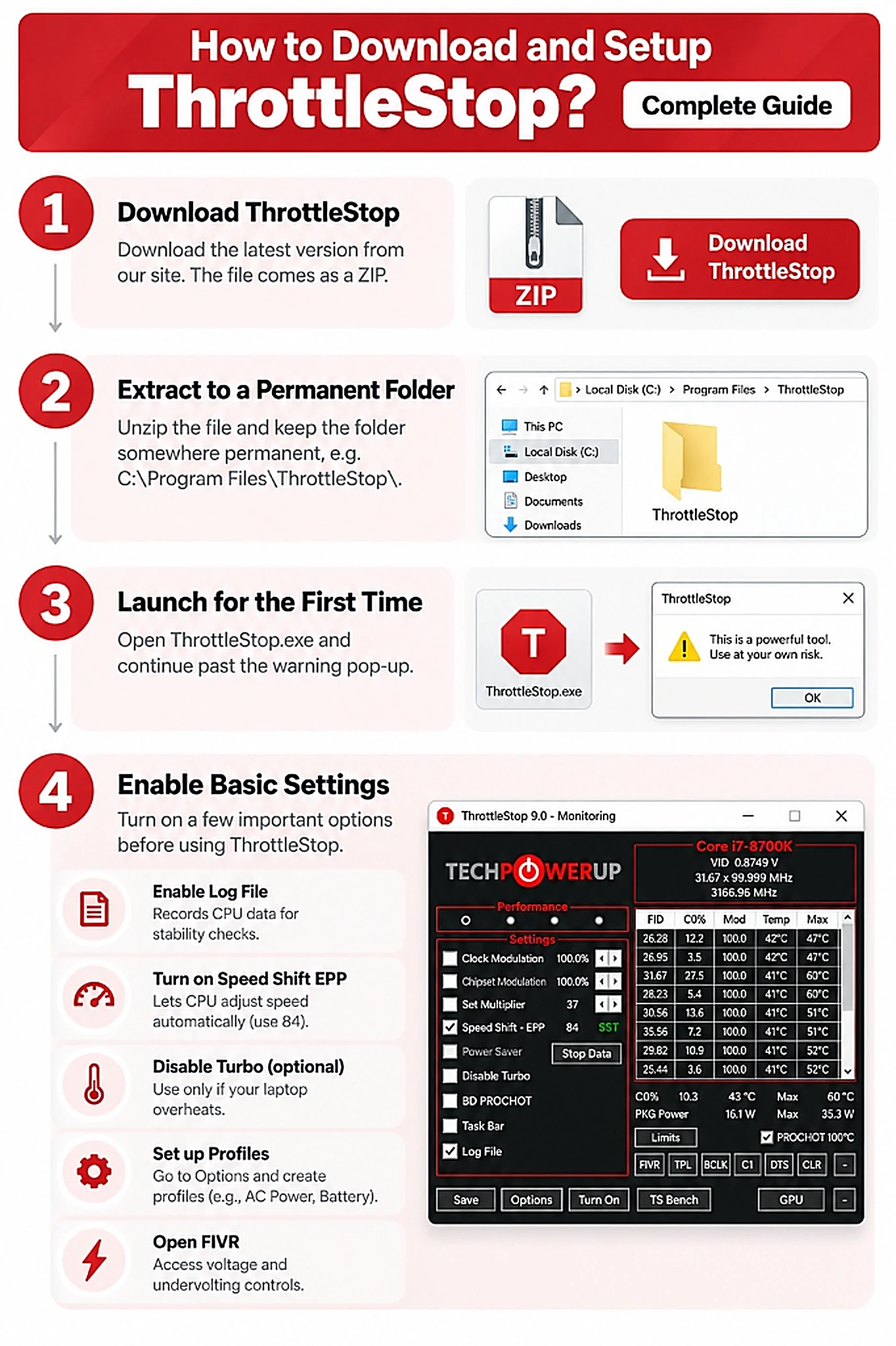
Download the latest version from our site by clicking the download button. The file comes as a ZIP. Save it somewhere you can find it again.
Step 2. Extract the ZIP to a Permanent Folder
ThrottleStop is portable, so no installer is needed. Simply unzip the file and place the folder somewhere permanent, such as C:\Program Files\ThrottleStop\. Avoid keeping it on the Desktop, as moving the folder later can cause issues with automatic startup.
Step 3. Launch ThrottleStop for the First Time
Open ThrottleStop.exe. A warning pop-up will appear. Read it and continue.
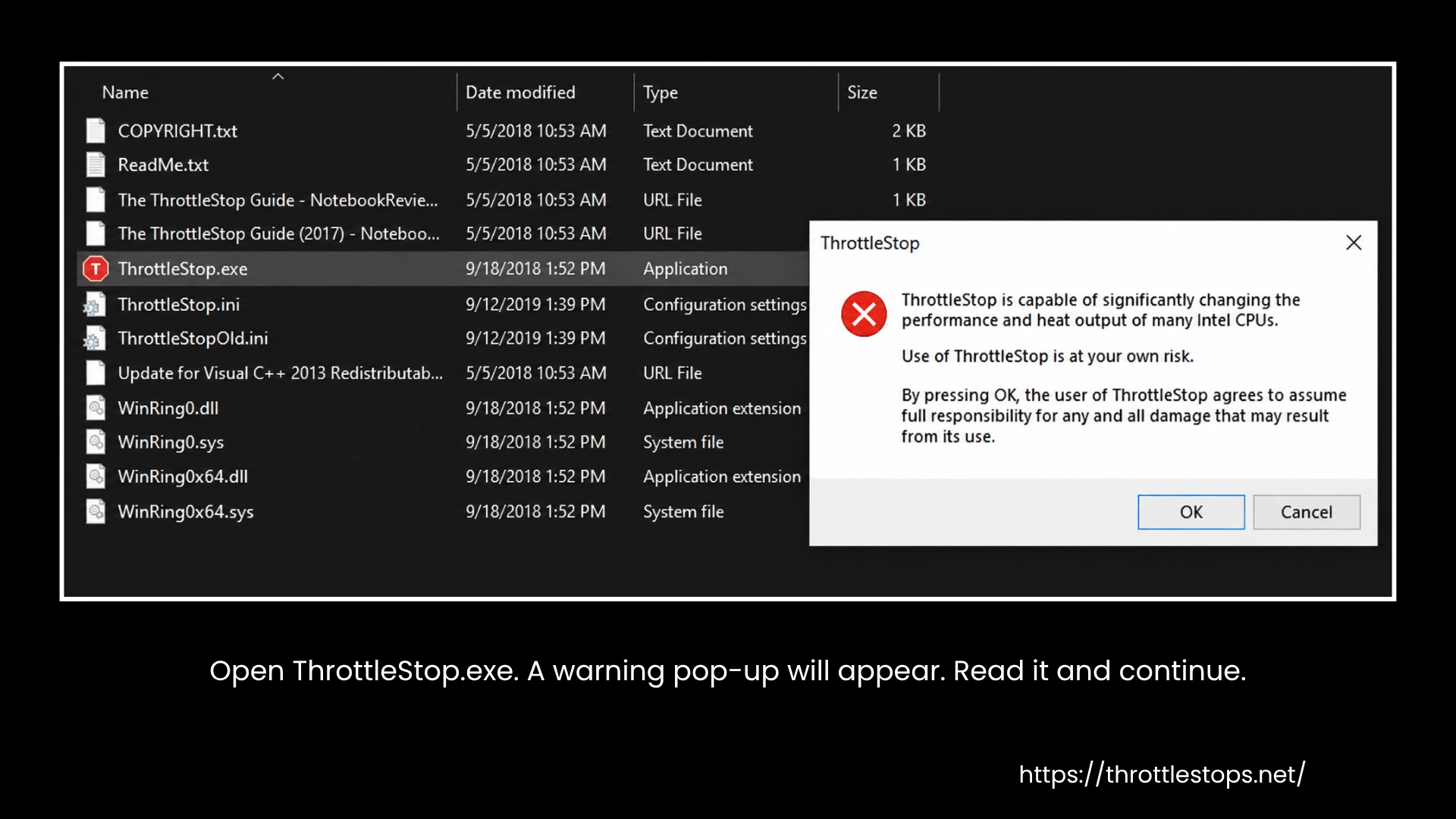
The main window will open with the default CPU settings. If you ever want to revert everything, delete or rename ThrottleStop.ini inside the program folder, then shut down the PC completely before powering it back on.
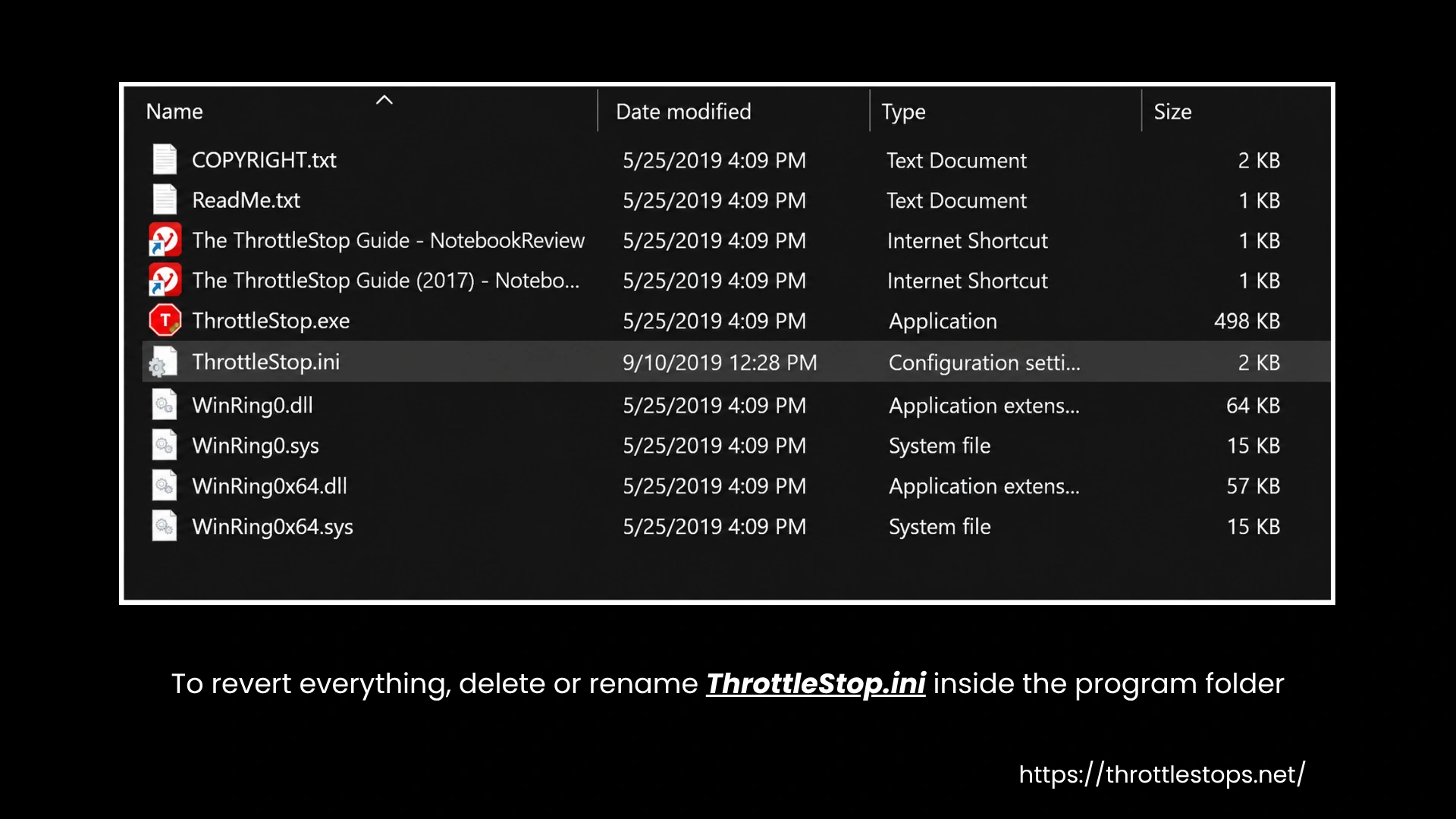
MFC120u.dll to run. If the app doesn't launch and shows a missing MFC120u.dll error, install both the 32-bit and 64-bit Microsoft Visual C++ 2013 Redistributables.Step 4. First-Time Setup and Basic Interface Prep
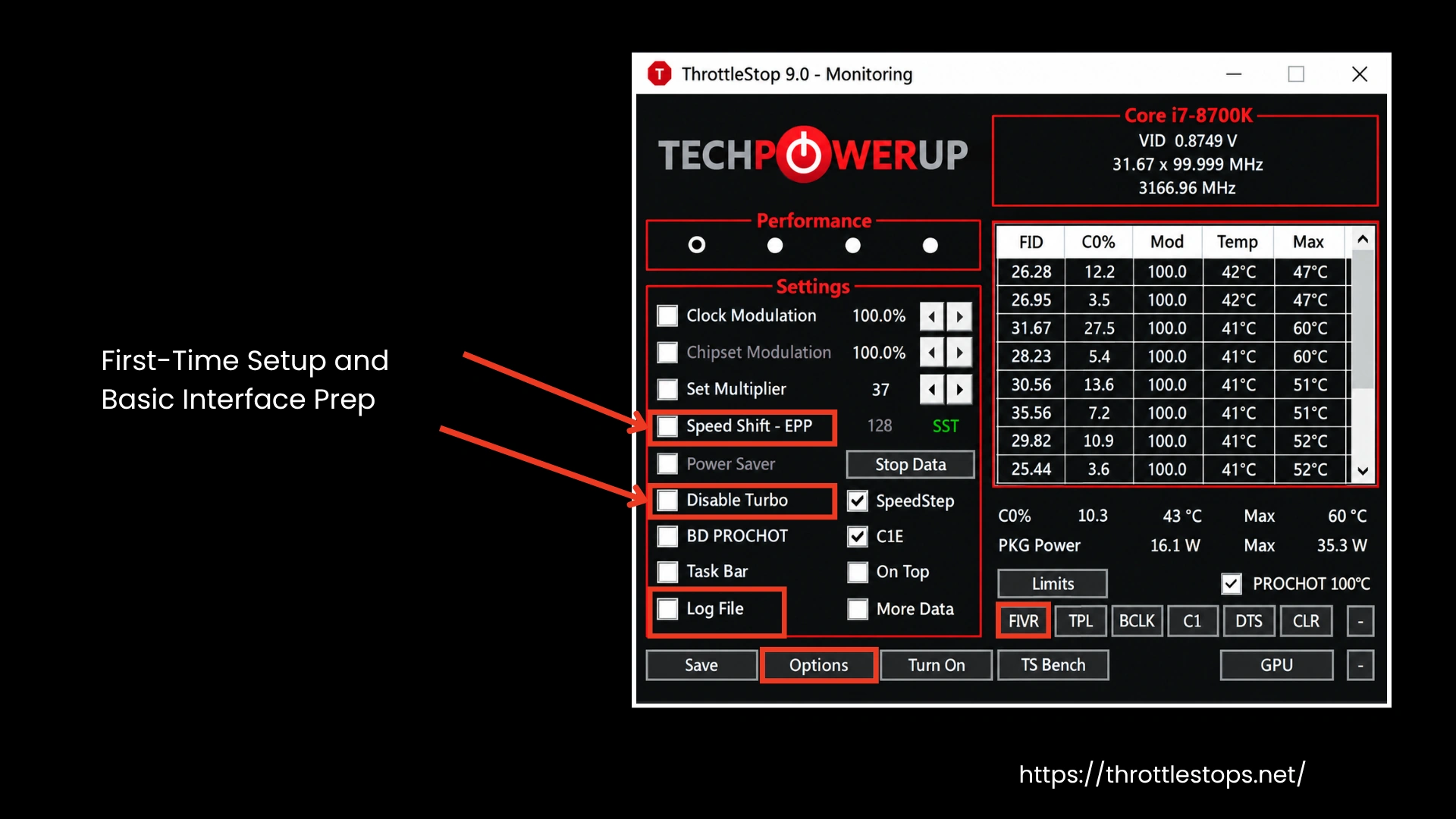
Open ThrottleStop.exe. You will see the main interface. This is where you control your CPU settings. Before tuning performance, enable some basic options to set up ThrottleStop.
- Enable Log File at the bottom-right corner. This records CPU temperature, speed, and other performance data so you can check stability later.
- Turn on Speed Shift EPP. This allows your CPU to adjust its speed automatically for performance or power saving. You can edit the value by clicking the number next to it. 84 is a reasonable starting point.
- Check Disable Turbo only if your laptop is getting very hot or throttling constantly. It reduces the maximum speed but can help prevent overheating.
- Click Options, then name your profiles (like “AC Power,” “Battery,” or “Gaming”). This will let you switch between settings quickly later.
- Click FIVR to access voltage and undervolting controls. Undervolting is optional. Some users skip it on day one and return to it when they are comfortable. For more detailed information, read our guide on how to use ThrottleStop.
How Does ThrottleStop Work?
ThrottleStop functions by interacting directly with your CPU’s registers. This gives you deeper control over behavior that the system normally locks down, including speed, power, and heat output. It is one of the most flexible tools for managing temperatures on a laptop or desktop. Always run it as Administrator because changes apply the moment you press a button. Here’s how each part of the program works:
The Main Window Offers The Complete Control:
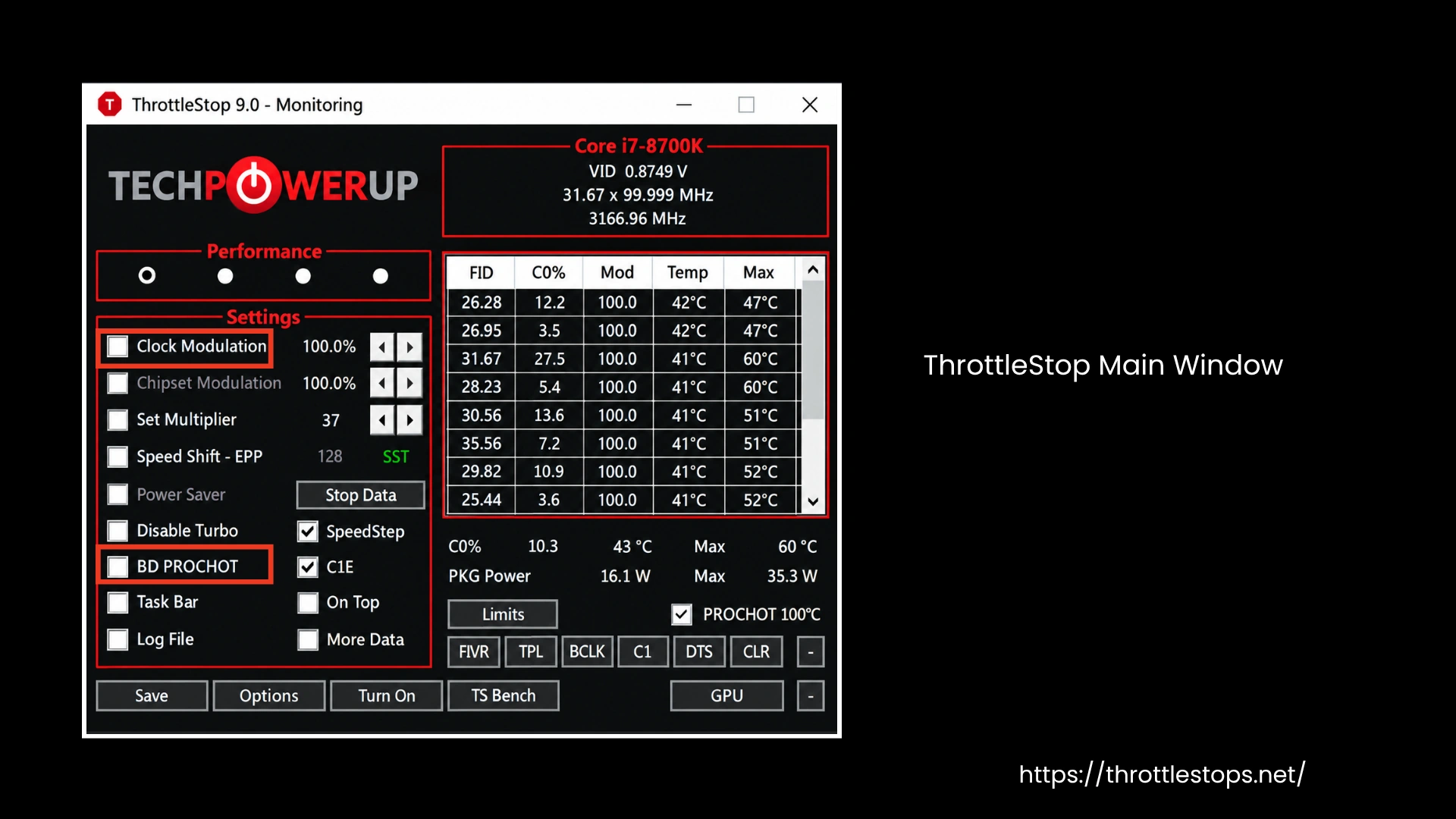
The main window acts as the heart of the program. Everything you adjust later is rooted here, so understanding this screen helps you move with confidence.
This area shows live temperature, clock speed, load, and power use. Watching these values helps you see how your CPU reacts when you change settings.
These buttons let you move between different performance modes. Each mode stores its own configuration, so you can shift from gaming to normal work without redoing everything.
Get access to the CPU multiplier, TDP limits, and Turbo Boost behavior. These controls help you fine-tune how aggressively the processor runs and how much heat it produces.
This toggle lets you switch BD PROCHOT on or off. It is tied to thermal signaling from other components and affects how the CPU responds when the system warms up.
Profiles Manage Performance According To Your Needs:
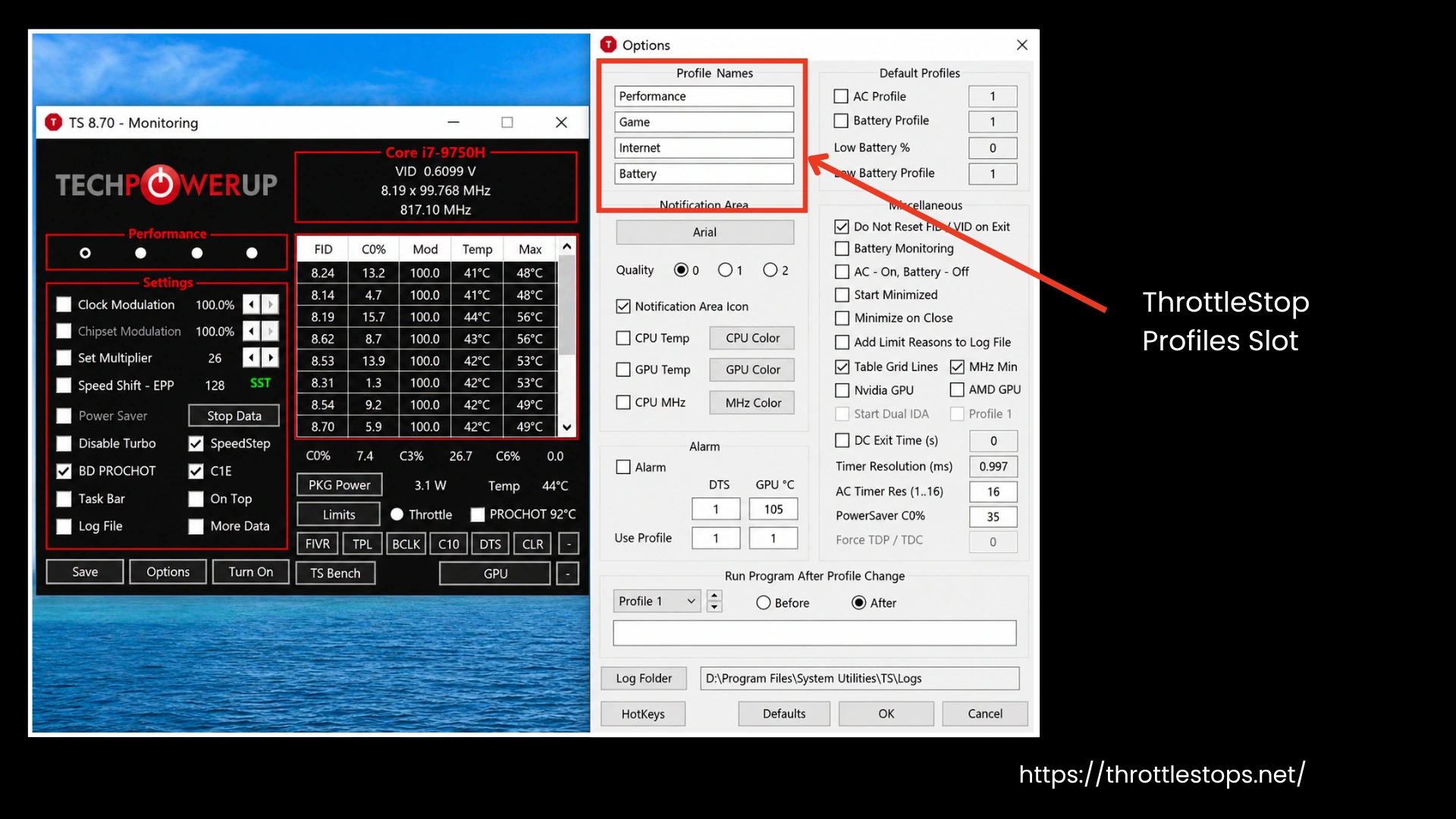
ThrottleStop includes four profile slots. Each one can be shaped to match how you use your system. Once set up, switching profiles takes a single click.
This mode focuses on maximum clock speed. It is best for gaming, editing, rendering, and anything heavy that benefits from stable high frequency.
Best profile for extended battery life. It lowers clock speeds, disables Turbo Boost, reduces power draw, and keeps temperatures low during everyday use.
Best for users finding a middle ground. It keeps the system responsive without pushing the CPU harder than necessary.
This mode aims for the lowest possible heat. It reduces voltage and clock speed to keep the system quiet and stable.
You can switch manually or configure a task scheduler rule so the right profile loads when specific apps launch.
Undervolting Reduces Heat and Power Consumption:
The ThrottleStop undervolt feature allows you to reduce the voltage going to the CPU. Lower voltage means less heat, quieter fans, and better battery life. The process happens inside the FIVR panel, which controls CPU Core, CPU Cache, and turbo ratios.
Open FIVR and enable Adjustable Voltage along with CPU Core and CPU Cache options. Use the Offset Voltage sliders to lower the voltage on both sections. Start with small steps such as ~50 mV. Many users test values like ~80 mV for both core and cache, then adjust until stable. After each change, run TS Bench to confirm stability.
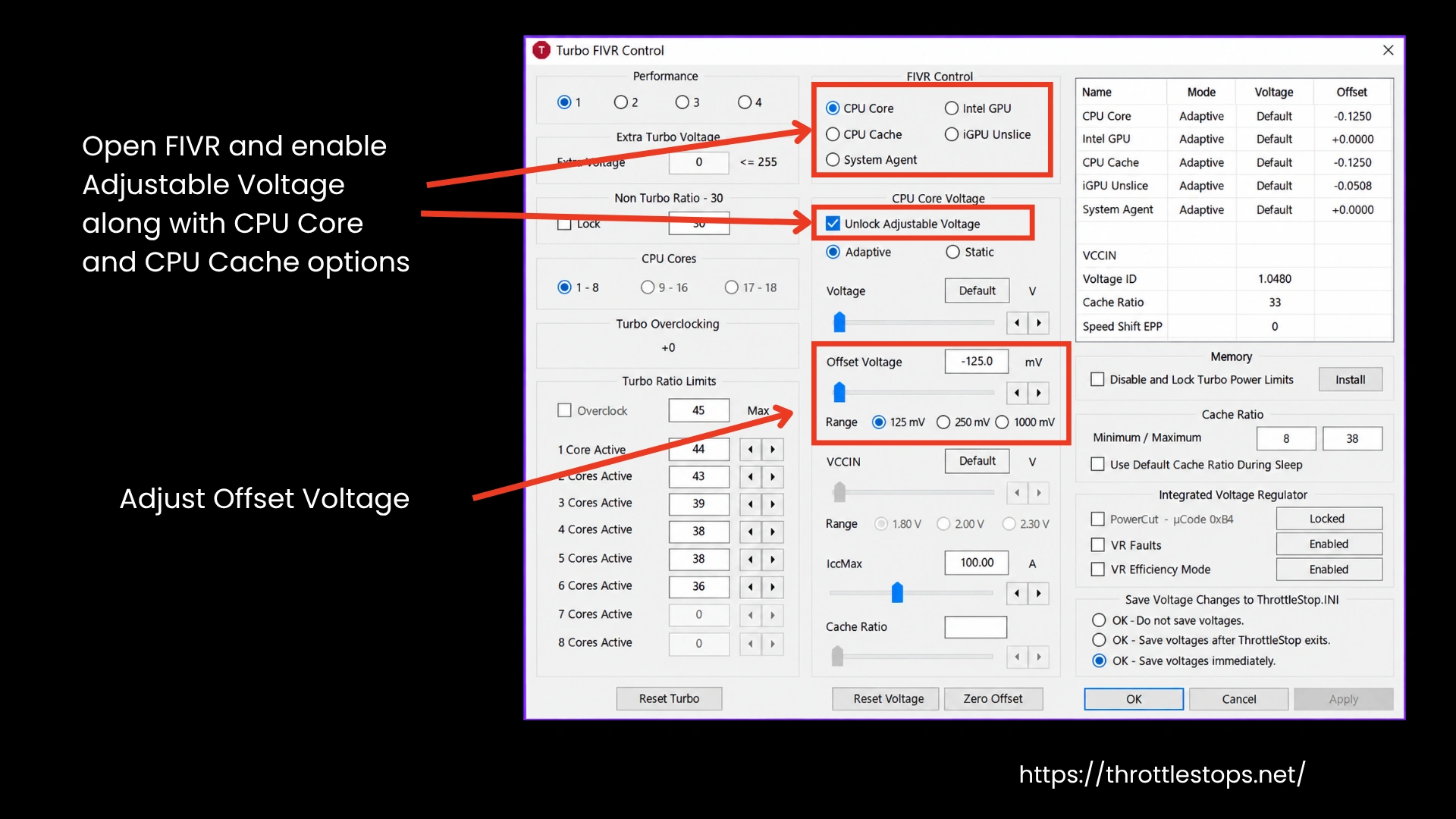
Undervolting can drop temperatures by 10–15°C. Fans do not spin as often, battery life improves, and systems run more consistently under load.
Intel 10th-gen and 11th-gen processors respond well. Some locked systems can be unlocked by turning off Memory Integrity or rolling back a BIOS update.
Too much undervolting causes freezing or random restarts.
Turbo Boost Management:
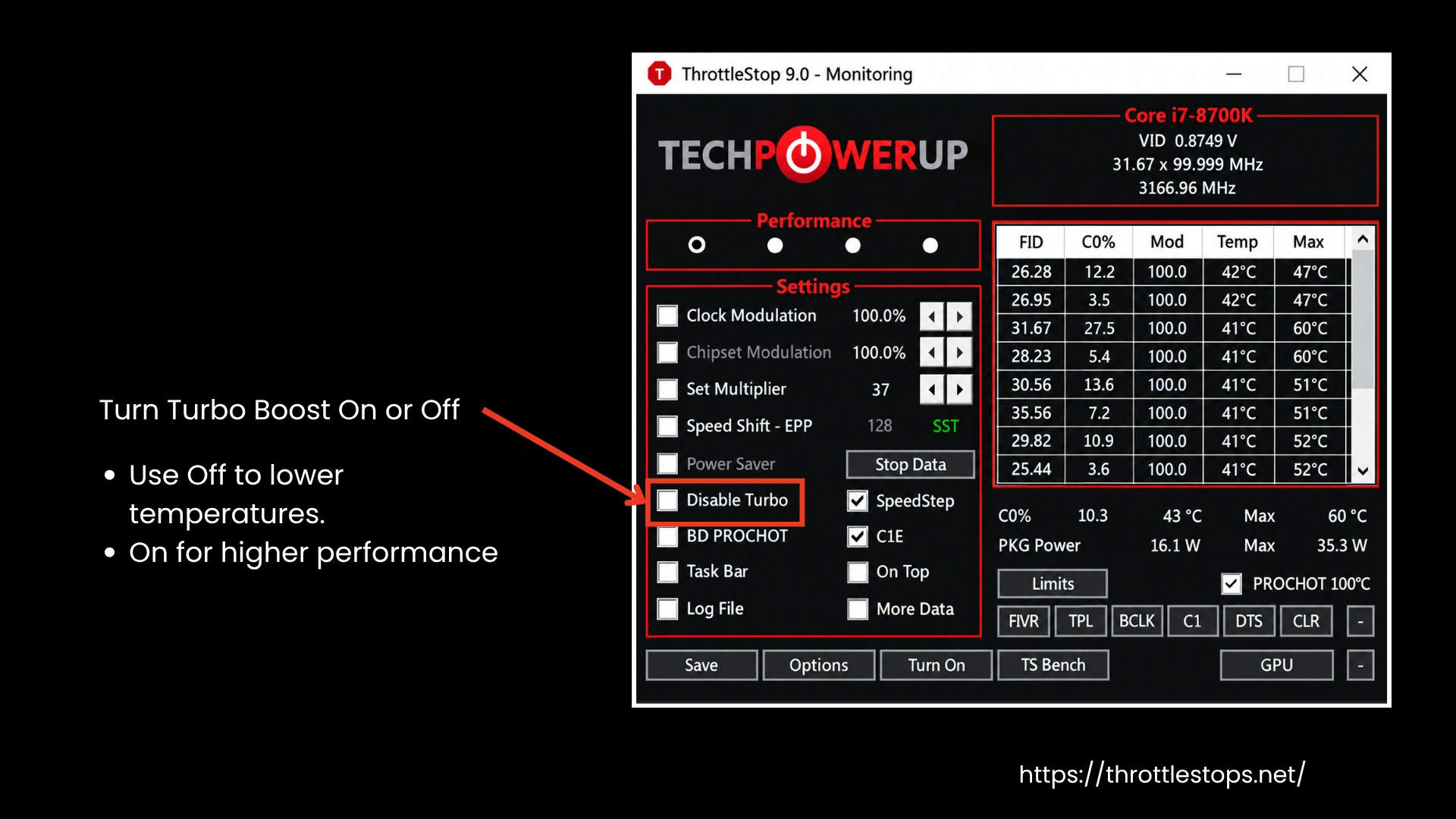
Turbo Boost is an Intel feature that lets your CPU jump above its normal speed when apps need extra power. Higher speed means more heat. ThrottleStop gives you control over how much Turbo Boost your CPU can use.
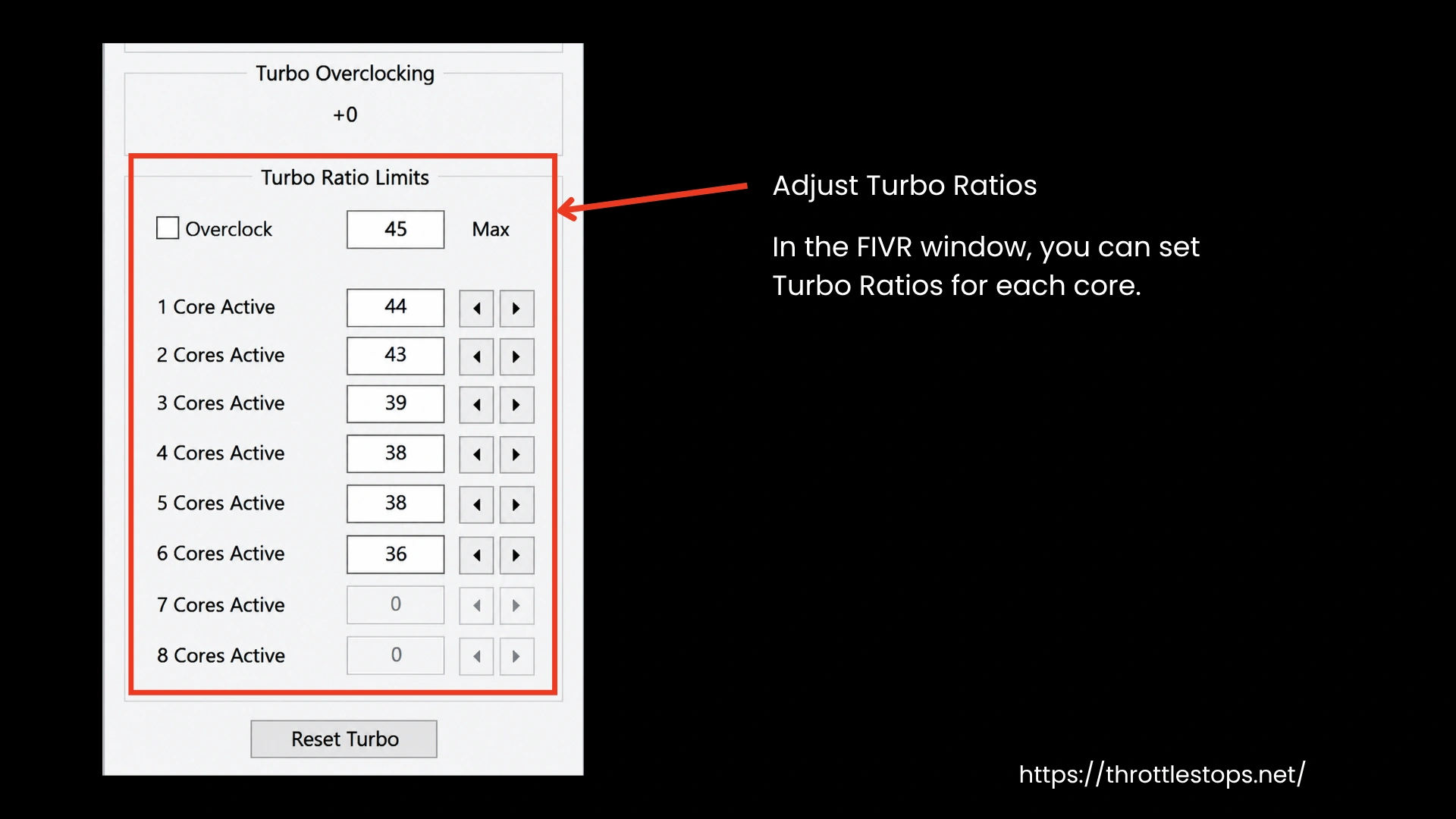
For 12th- and 13th-gen CPUs with locked voltage, ThrottleStop works by writing directly to the CPU’s turbo ratio and power limit registers. It cannot change voltage, but it can lower the turbo multipliers to control peak frequency and reduce heat. If turbo ratios are also locked, ThrottleStop adjusts PL1 and PL2 power limits through the TPL panel, capping CPU power (e.g., 35W) to maintain stable temperatures.
- Use Off to lower temperatures.
- On for higher performance (this will lead to more heat).
- Lower ratios mean lower maximum speed, which causes less overheating.
BD PROCHOT Safety Notes:
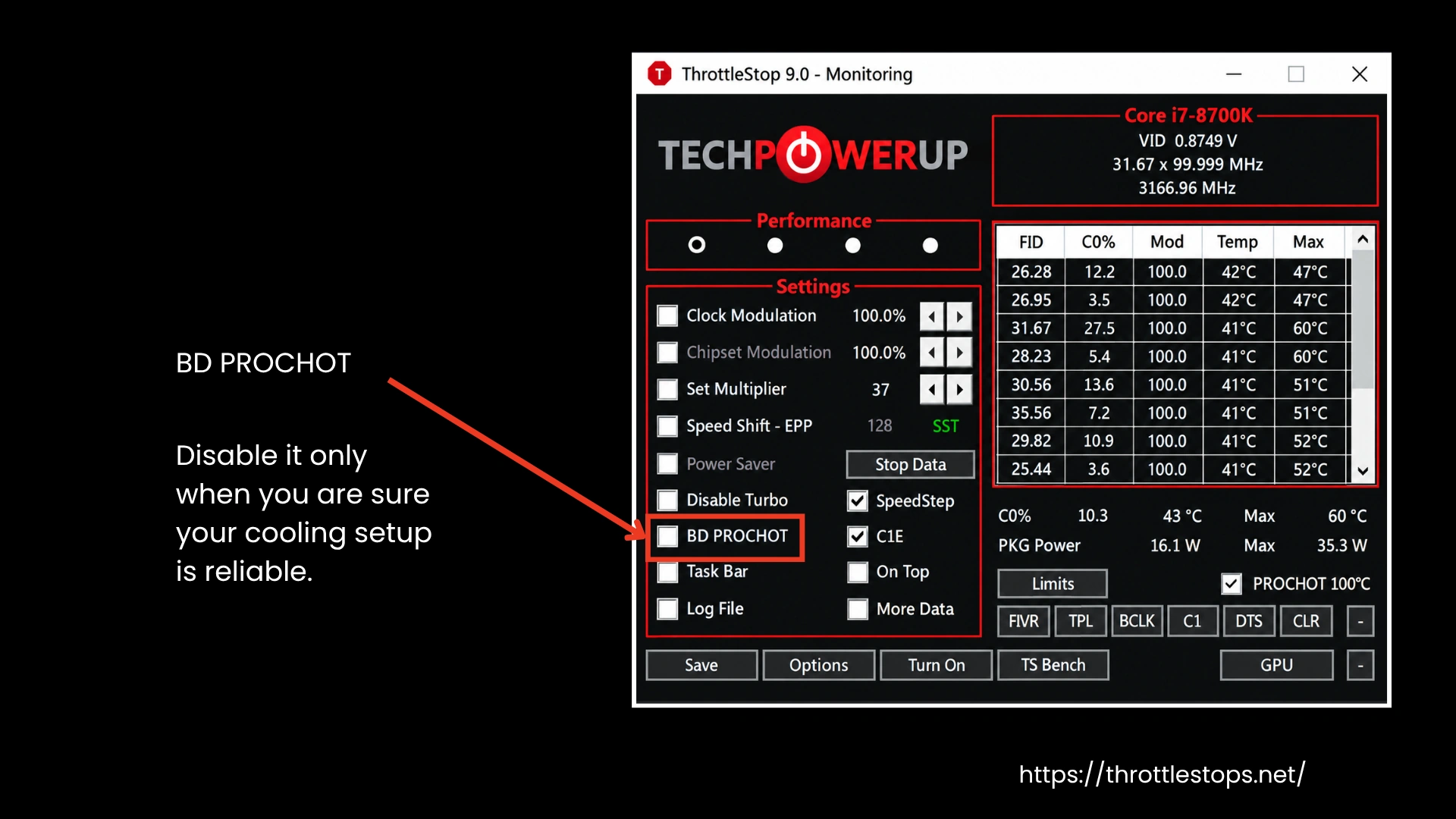
BD PROCHOT relates to a signal that allows other components to slow the CPU down when they overheat. Disabling this option prevents unwanted slowdowns caused by sensitive sensors, but it removes a layer of protection.
If BD PROCHOT is off, the CPU may keep running fast while another part of your system heats up. This can increase system temperature and, in rare cases, cause damage. Only disable it when you are sure your cooling setup is reliable, and you understand the trade-off.
Video - ThrottleStop Explained
Features in Detail
Real-Time Monitoring & Logging
ThrottleStop displays live CPU data, including temperatures, clock speeds, voltage, and power consumption. It tracks throttling events and logs them for easier analysis. Users can identify performance bottlenecks, observe workload behavior, and compare results under different settings. Logging further supports troubleshooting and provides insights for making improvements.
Thermal Throttling Control
CPUs reduce speed when overheating to protect the hardware. ThrottleStop lets users modify or bypass certain throttling limits when cooling is sufficient. By adjusting throttling behavior, the CPU can maintain higher performance under sustained load. This feature is particularly useful for laptops or small form-factor PCs with aftermarket cooling solutions to maximize sustained processing power.
Voltage Adjustment (Undervolting)
The undervolting feature reduces Intel CPU core and cache voltage, lowering heat and power draw. ThrottleStop makes this accessible through the FIVR panel. Safe undervolting improves battery life, reduces fan noise, and keeps laptops cooler without sacrificing performance. Users can incrementally adjust voltage while testing stability with TS Bench to avoid system instability.
Power Limit Configuration
ThrottleStop allows modification of PL1 and PL2 power limits for Intel CPUs. Adjusting these limits can either increase performance or improve efficiency. Users can cap CPU power to prevent thermal spikes or raise limits for short bursts of higher frequency. Get control over power consumption and thermal output for desktops and laptops.
Turbo Boost & SpeedStep Management
ThrottleStop controls Intel Turbo Boost and SpeedStep, which automatically adjust clock speeds. Users can disable Turbo Boost for steady frequencies or fine-tune engagement settings for optimal performance. This helps maintain a balance between speed and heat. Proper management can reduce throttling events while maintaining responsive CPU performance under heavy workloads.
Multi-Profile Support
Users can create multiple profiles with unique CPU settings. Profiles can target high performance for gaming, energy-saving for battery use, or cool operation to minimize heat. Switching is manual or automatic based on temperature, power source, or application. Per-profile customization includes turbo limits, voltage offsets, and Speed Shift adjustments.
Fine-Tuning CPU Performance
It allows adjusting individual core multipliers, frequencies, and power offsets. Fine-tuning benefits gamers, content creators, and workstation users who require maximum performance without overheating. Per-core adjustments allow stable overclocking or subtle optimizations for uneven workloads.
Advanced Customization Options
ThrottleStop includes BD PROCHOT control, Speed Shift tuning, and per-core frequency adjustments. Users can manage bi-directional processor hot signals and customize logging, fonts, and power plans. These advanced options allow detailed control over system behavior, providing professional-level performance tuning and hardware protection capabilities.
Frequent Updates & Latest CPU Support
It receives regular updates to support Intel’s newest CPUs and Windows versions. Recent releases added per-core adjustments, enhanced FIVR tuning, and extended support for 12th–14th Gen processors. Updates improve logging, profile management, and safety features like Safe Start. Staying updated ensures compatibility with modern CPUs and consistent performance optimization.
Why Choose ThrottleStop?
Your laptop's probably faster than you think. Most manufacturers dial down CPU performance to save battery and prevent overheating, even when you need that extra power. ThrottleStop removes those artificial limits that manufacturers sometimes set. It spots when your system's being throttled and lets you push past those restrictions. Whether you're gaming, rendering videos, or just tired of random slowdowns, it gives you control back.
The intuitive interface shows real-time CPU status, making adjustments effortless. Choose ThrottleStop to eliminate slowdowns, boost system efficiency, and maintain consistent operation under heavy workloads. It’s the tool for anyone serious about squeezing high-speed performance from their laptop or desktop with complete confidence.
FAQs
You can download it from our website. Just extract the ZIP, run the .exe as admin, and start managing your CPU performance without installing anything.
ThrottleStop is safe when you adjust settings slowly and watch your temperatures. As long as you make small changes and monitor stability, your system stays protected and runs reliably.
ThrottleStop helps Intel users control throttling, power limits, and heat. It doesn’t work with ThrottleStop AMD systems, so AMD users should use Ryzen Master or BIOS features like PBO instead.
Yes, it’s completely free. If you see “ThrottleStop CPU Not Supported,” you’re likely using AMD hardware, or Windows security features are blocking it. Updating or adjusting virtualization usually fixes the issue.
The tool itself won’t harm your CPU, but aggressive settings can cause overheating. If your system becomes unstable, lower your changes or return to your previous setup to restore normal performance.
Disabling power throttling can increase speed but also raise heat, especially on laptops. ThrottleStop helps you control limits safely, but you should monitor temperatures closely and aim for balanced performance.
Conclusion
If your laptop or PC keeps slowing down, ThrottleStop is a handy CPU throttling control tool. Take a hands-on approach to address performance drops by downloading ThrottleStop. Use the software to monitor and control CPU behavior directly. Even during heavy tasks, your laptop can maintain performance without sudden slowdowns or lags. People on ThrottleStop Reddit threads share tips and discuss undervolting benefits, so check the discussions to learn how to use this tool safely and get the most out of your system. Read our guide if ThrottleStop isn’t working.